
LAUNCH CHECKLIST
SellSnap AI Checkout Testing Checklist: Before You Run Meta Ads
Test your SellSnap product funnel before Meta ads go live. Check variants, coupons, COD, prepaid payments, order records and shipping readiness.
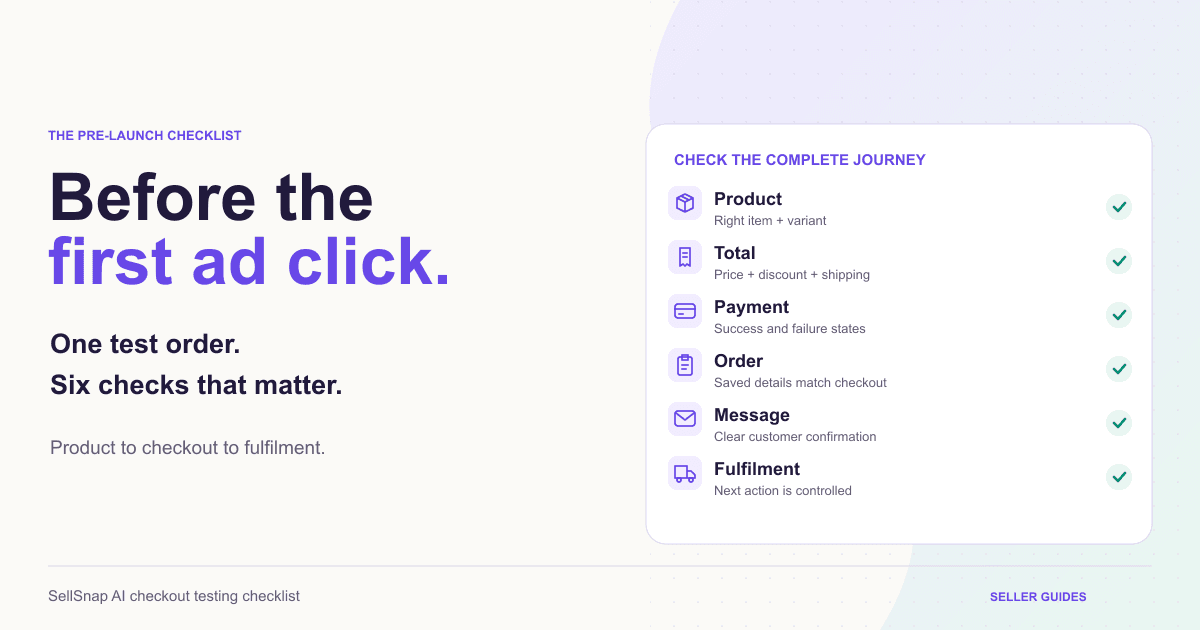
Your funnel looks ready, the product photos are uploaded, and your first campaign is waiting. Before you send paid traffic, follow one order through the complete buying journey. A working buy button is only the starting point. Customers also need the correct variant, a clear total, a suitable payment option, and a reliable confirmation. Your team needs an order record it can fulfil. This SellSnap AI checkout testing checklist helps you evaluate those details with one product first. Expand the checks to other variants and offers once the basic path is clear.
Prepare a Realistic Test Order
Choose the product, variant, quantity, and payment method you plan to advertise. Write down the expected subtotal, discount, delivery charge, and final amount before opening checkout.
Use contact details you control and a clearly identifiable internal test order. Keep customer-facing messages and fulfilment actions in mind: an order created for testing can still trigger connected services.
If your workspace has no isolated testing environment, arrange a controlled process with your team before placing an order. Never assume that a payment gateway's test mode also disables shipping, emails, or other app automations.
Record what you expect to happen so that testing becomes a comparison, not just a series of clicks.
1. Open the Same Product Journey Your Ad Will Use
Start from the actual destination URL intended for the campaign, preferably on a phone. Confirm that it opens the correct published page without requiring an account login.
Compare the item shown in the ad with the page headline, photographs, price, and default variant. A campaign for a single bottle should not unexpectedly land on a different pack size.
Then choose another variant and return to the advertised one. Confirm that the displayed selection remains understandable.
If you use the AI product funnel builder, review the generated text against your product facts. Check quantity, material, ingredients, dimensions, and any claims that affect the buying decision.
2. Check the Total Before Choosing Payment
Move into checkout and compare the summary with your written expectations. Verify the product, selected variant, quantity, and any charges.
If a coupon is part of the offer, test both an eligible order and an ineligible one. The customer should understand whether the discount applied and what they must pay. Do not assume that a promotional banner means the checkout calculation is correct.
Also try an ordinary customer mistake, such as leaving a required address field blank. The message should help them correct it without losing the important order choices.
Review your offers and coupons against their actual scope: product, funnel, validity, and any conditions available in your configuration.
3. Test Prepaid Success and Failure Separately
Use the gateway's supported testing process and confirm that your SellSnap configuration supports the flow you are testing. Check a successful payment, a failed payment, and closing or abandoning the payment window.
After failure, the page should not tell the buyer that payment succeeded. After success, check the resulting payment status in both the order record and the gateway.
For a Razorpay setup, distinguish test credentials from live credentials before attempting payment. Razorpay documents simulated success and failure flows in its official integration checklist. Test transactions are not evidence that live payments are enabled.
A branded checkout should remain clear through these transitions. Record any inconsistent amount, duplicate order, or confusing retry behavior for investigation before launch.
4. Treat COD as Its Own Journey
A successful prepaid test does not validate COD. Select COD separately and check the displayed amount due, any applicable conditions, and the confirmation wording.
The confirmation should make it clear that the order was placed and that payment is due on delivery. Do not interpret order value as money already received.
Review the order's next action with your team. If COD orders require confirmation before shipping, identify who performs that check and where the result is recorded.
Do not confirm a test COD order for dispatch just to see what happens. First establish whether that action queues a real shipment in your connected setup.
5. Compare the Order Record With the Customer's Summary
Check product, variant, quantity, customer contact details, delivery address, discount, amount, payment method, and current status wherever those fields are available.
An order that appears in the list is not automatically ready to fulfil. Look for missing details or a status that contradicts the payment outcome.
Keep the order identifier with your test notes. If something fails, that identifier and the exact step are more useful for troubleshooting than a screenshot saying only that checkout did not work.
Open SellSnap order management and locate the test order. Compare it with the final checkout summary rather than relying only on the thank-you page.
6. Check Customer Confirmation and Shipping Readiness
Using your own test inbox or phone, inspect any enabled order messages. Check the store name, item, amount, support details, and next step.
Only expect messages from channels you have configured and enabled. A missing email may require checking the sender connection or message configuration; it does not automatically mean the order failed.
For shipping, verify pickup details, package information, and serviceability through the connected provider. Check what happens when a delivery location is unsupported.
Keep a deliberate boundary between reviewing shipping readiness and requesting a live pickup. Your internal test should not accidentally become a parcel that someone packs and dispatches.
7. Keep a Short Launch Readiness Record
Use a simple record with four columns: check, expected result, observed result, and action owner.
Mark a check passed only after observing the outcome. Leave unresolved items visible, especially incorrect totals, misleading payment status, missing order details, or unintended fulfilment actions.
Repeat the affected checks after a fix. Once the important paths work, you can evaluate the first campaign with a clearer understanding of the buying and operational journey.
Review sales analytics with the test records in mind. Understand whether your reports include those orders, and avoid presenting internal tests as customer sales.
BUILD YOUR SELLING SYSTEM
Ready to turn your product story into a focused funnel?
Start a seven-day free trial and build your product funnel, branded checkout and selling operations in one place.
Start your free trialRELATED SELLSNAP AI FEATURES
FAQ
Frequently asked questions
Is a successful test payment enough to launch?
No. Also check the product selection, total, order record, customer confirmation, and fulfilment process. Confirm live payment readiness separately.
Should I test every variant?
Test each combination that changes price, availability, or fulfilment requirements. Begin with the advertised variant, then expand based on those differences.
Does Razorpay test mode stop shipping automations?
Do not assume it does. Gateway test mode concerns payments; check how your application and connected services handle the resulting order.
What if a test order appears in my reports?
Keep a record of it and use supported reporting or administrative options to account for it. Do not relabel test activity as genuine demand.